.png?width=250&height=34&name=BS-logo-pb%20(1).png)
Why this matters
- Control when products are available for ordering
- Keep delivery windows accurate for retailers
- Prevent orders being placed for unavailable months
Note: There are two ways to update delivery months:
- GUI (Interface) → Best for small, individual updates
- DLS (Bulk Upload) → Best for updating multiple products at once
Option 1: Update in the Interface (GUI)
Steps
- Go to Setup → Releases
- Search for and select your Release
- Click the More (⋯) menu
- Select Release Products
- Find the relevant Product
- Click the More (⋯) menu on the product
- Select Product Releases
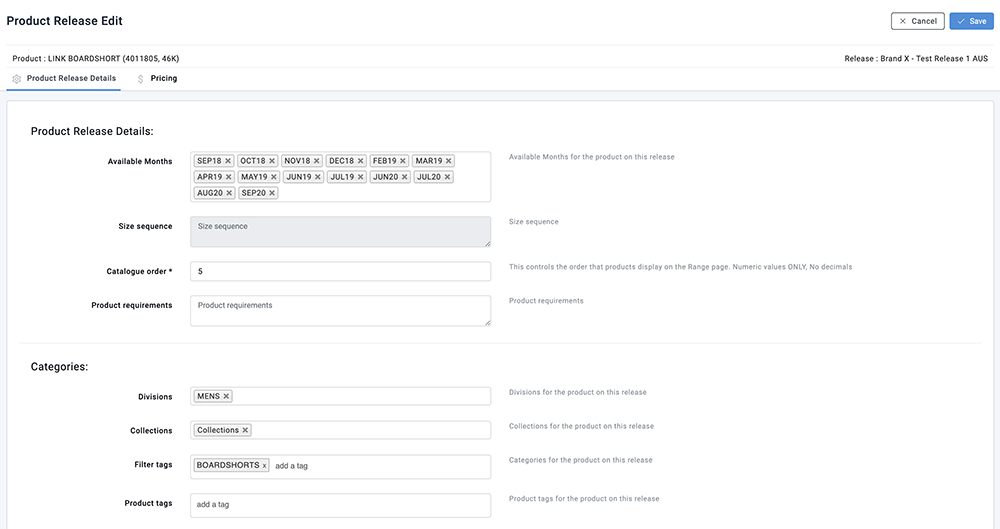
- Select the product and click the Edit icon
-
In Available Months:
- Type to add a month, or
- Click an existing month to remove it
- Click Save
Option 2: Update via DLS (Bulk Upload)
Steps
- Go to Setup → Releases
- Find and select your Release
- Click Export → Product DLS
-
Open the file and update the Available Months column:
-
Save the file as a CSV
- Go to Administration → Delivery Months Import
- Click + Add
- Select your Brand and Release
- Upload the file
- Click Upload
- Ensure the Available Months column is correct before uploading
- Bulk upload will overwrite delivery month data for the products included