.png?width=250&height=34&name=BS-logo-pb%20(1).png)
Why this matters
- Give Retailers a branded landing experience when they click into a Brand
- Update imagery and links whenever campaigns, seasons, or releases change
- Target different Homepage content to different Retailers, based on location
🗒️ Note: Homepages are housed under Media.
Publish a Homepage template
- Click Setup > Home Page Templates
- Click the + icon in the top right of your screen
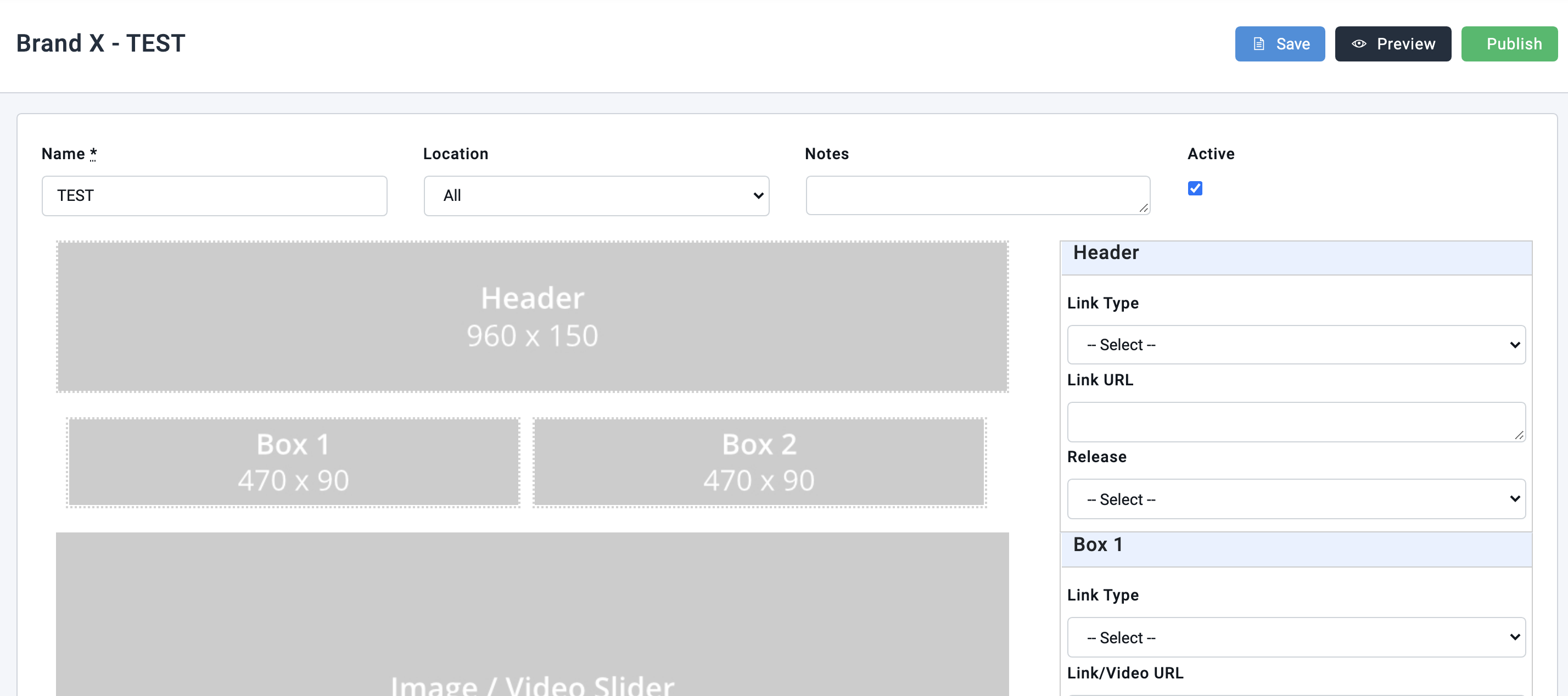
- Select the Homepage Template Design, the Brand, add a Name for the template, and select a Location
- Once you're happy with how your Homepage template is displaying, select SAVE, then PUBLISH
Edit an existing Homepage
- Go back into the existing Homepage template
- Drag and drop new images over the existing imagery
- Add in the new links
- Click SAVE, then PUBLISH
🗒️ Note: Once published, the updated Homepage will be live immediately, replacing the previous version.
Understanding Homepage locations
The Location field determines which Retailers see a given Homepage, based on the Retailer's country.
- All — the Homepage displays to every Retailer, regardless of country
- Specific location(s) — create separate Homepages for different regions (e.g. one for Australian Retailers, another for the rest of the world)
This is especially useful if you run separate Releases by region, or use Segments to hide certain products from specific customers who aren't eligible to buy them — in those cases, a location-specific Homepage keeps the content relevant to what that Retailer can actually see and order.