.png?width=250&height=34&name=BS-logo-pb%20(1).png)
Super Supplier User - Delete Media Pack Assets
Setup > Media Pack Assets.
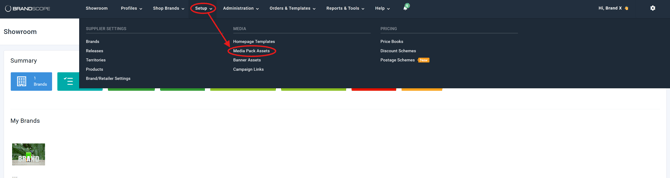
Use the drill-down arrow at the Brand and Release level to navigate to the category that contains the assets or links you wish to remove.
To delete assets, click on the folder or pin icon in the Actions column.

Warning ⚠️: Deleting a Media Pack asset will permanently remove it from the downloadable pack for all past and future orders. If you are replacing an asset, ensure the new file or link is uploaded immediately to avoid download gaps, and retain the previous file name to ensure consistency.
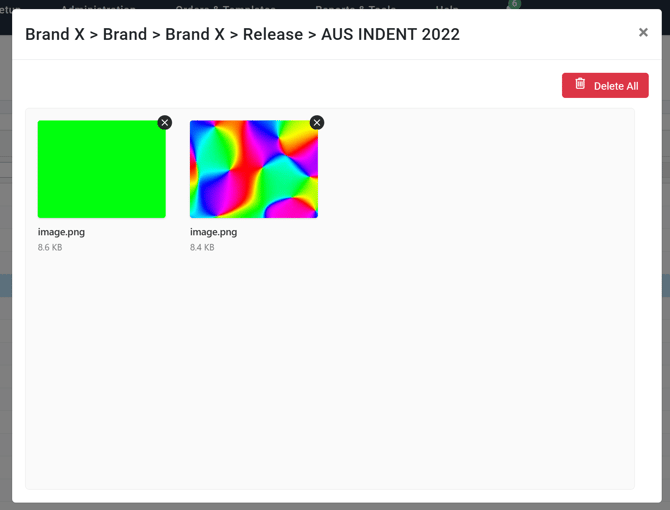
When removing items, you can delete individual assets by clicking the cross (X) in the corner of the image thumbnail. Alternatively, use the Delete All button to clear all assets from the specific drill-down level you are currently viewing.
Note 🗒️: Product Resources that were previously loaded directly to a product must be deleted from the product to be completely removed from this pack.