.png?width=250&height=34&name=BS-logo-pb%20(1).png)
🗒️ Note: This feature is currently in early access
Any feedback, issues with bugs or errors - please report these to admin@brandscope.com.au
Visualising Data
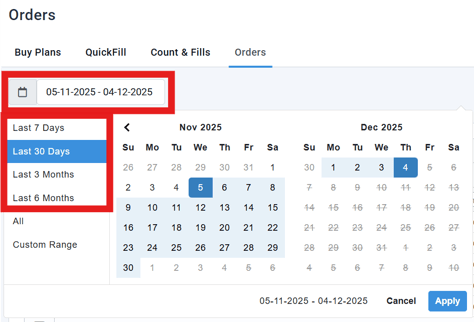
1. Select the date range on the data grid you wish to compare (e.g., buy plans, orders, etc.).
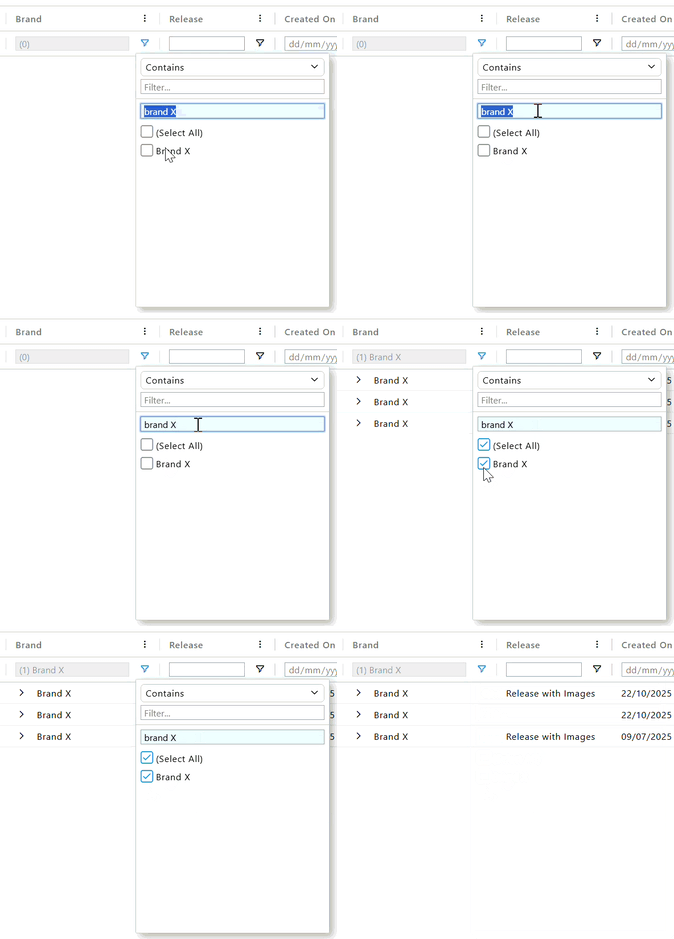
2. Use the filters at the top of the grid to refine your data, removing any unwanted entries. For example, below we’ve filtered the data to show only AUD for Brand X.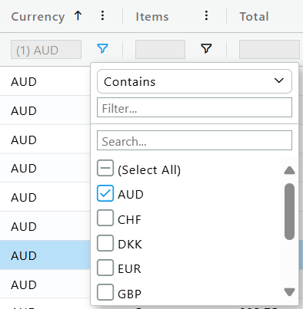
3. Select the column of data you want to compare by clicking and dragging from the top to the bottom of the column (e.g., retailer, territory, brand).
In this example, we’ve selected the order ‘Origin’ column before right clicking and choosing the Chart Style from the dropdown (this can be changed later).
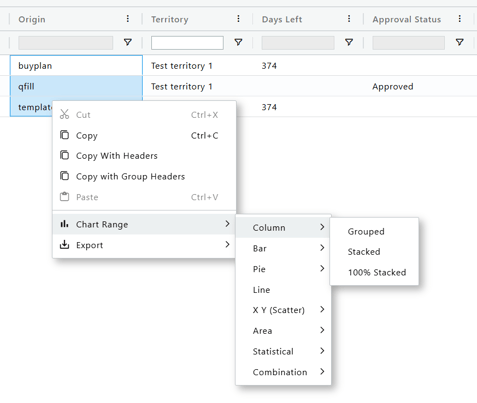
Next, use the ‘Edit Chart’ option in the popup menu to select your comparison data. This menu also allows you to export the chart at any stage.
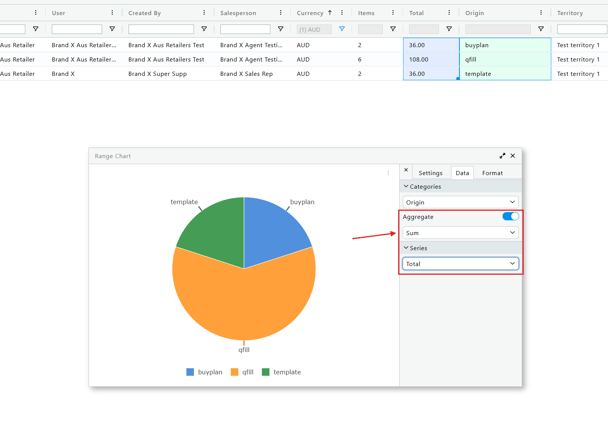
4. Set Aggregate to your preferred method (typically SUM) and Series to your comparison data (e.g., Order Total). The grid above will update to reflect the selections made in this tab.
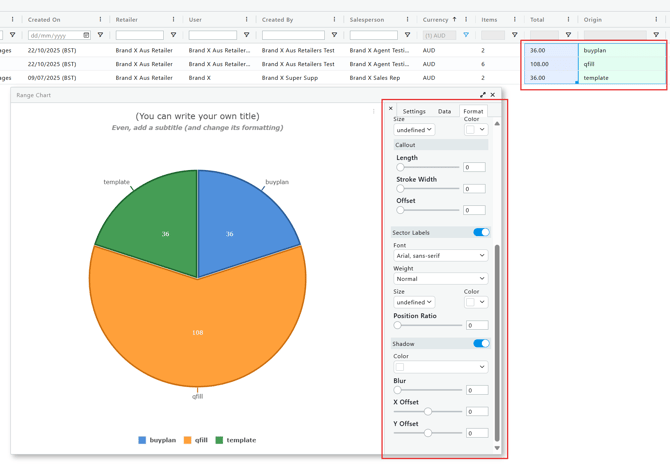
5. You can customise your graphs using the Format tab - adding titles, subtitles, overlays, colours, shadows, and more.
💡 Tip: Export these graphs anytime via the extra menu in the top-right corner of the chart's pop-up window.