
Why it matters
Call-outs let you draw a retailer’s attention to specific products within a release — whether that’s a hero style, a new arrival, or a must-have for the season. Assigning and managing call-outs is now faster, with the ability to copy, paste, and drag across multiple products at once.
Brands can now create 'call-outs' to highlight products within their releases to promote products to their retailers.
Steps
To add your call-outs to products please follow these steps
- Go to Set up > Releases
- Highlight the release required and click the three dots (more) icon
- From the dropdown list, select Release's Products
- All your products within the release will display. There will be a new column 'Callout' available
- Search for the product required and click into the call-out column to populate your call-outs
- Click the call-out required and it will automatically save
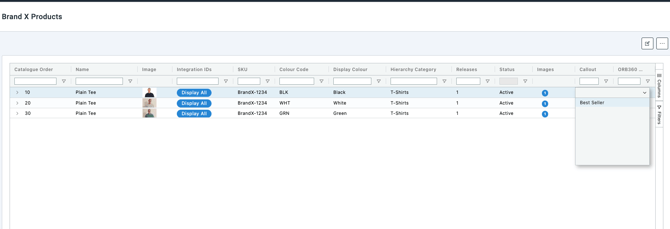
Applying call-outs to multiple products at once
You can now copy and paste the same call-out across multiple product lines, or drag it down to apply it in bulk, no need to update each product individually.
Use the Division, Category, and Collection filters to narrow down your product list before applying call-outs, making it easy to target a specific group of products quickly.
💡 Tip: Filter by division or category first, then drag the call-out down across the filtered results to apply it across an entire group in one action.
Once the products are updated. You can now view your call-out by viewing the release.
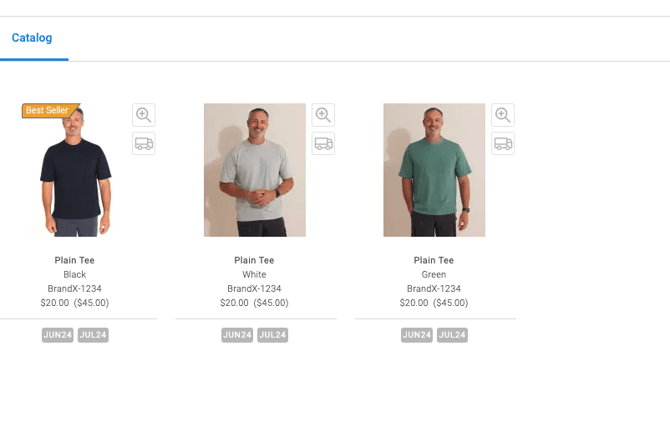
Viewing and sharing call-outs on the range page
Once call-outs are assigned to products, you can filter by them directly on the range page across your Indent, In-Season, and QuickFill ranges. This gives you a quick view of exactly which products are flagged and how they’ll appear to retailers.
To filter by call-out:
- Open the relevant release from the range page
- Use the Call-Out filter to view only products assigned to a specific call-out
💡 Tip: Use this view to sense-check your call-outs before your release goes live, you’ll see exactly what your retailers will see.
Sharing call-outs via Campaign Links
The call-out filter works hand-in-hand with Brandscope’s Campaign Links feature. Once you’ve filtered your range by a call-out, you can generate a campaign link to share that curated product view directly with retailers as part of your marketing activity.
This is particularly effective for promoting hero styles, seasonal must-haves, or new arrivals — retailers land directly on the filtered view without needing to search.
📝 Note: For guidance on creating and sharing campaign links, refer to Campaign Links.