.png?width=250&height=34&name=BS-logo-pb%20(1).png)
The Whiteboard transforms your product data into a visual planning canvas directly within the Visual Summary tab of your Buy Plan.
Instead of working through spreadsheets or static documents, the Whiteboard allows Suppliers, Agents, and Retailers to visually plan assortments, create suggested buy plans, and present collections in a lookbook-style format.
Using the products already loaded in Brandscope, users can drag, arrange, and annotate products to build clear monthly strategies or visual merchandising ideas.
This creates a shared visual language across the industry, making it easier to collaborate on product selections and range planning.
Tip: This feature needs to be activated by your Brandscope Account Manager.
One Tool, Three User Types
The Whiteboard is built to be a "mutual language" for the industry, ensuring everyone is on the same page.
- For Retailers: Move from spreadsheets to storefronts. Shape your buy by mocking up window plans, visualising ideas, and exporting suggestions to visualize exactly how products will look in-store.
- For Suppliers: Build comprehensive collections in minutes. Instead of manually assembling lookbooks, leverage the platform's data to create high-level overviews that highlight your range’s strengths.
-
For Agents: Elevate your sales pitch. Share interactive whiteboards with retailers during the "build-out" phase to demonstrate how a collection fits their specific aesthetic.
Mastering the Canvas: How it Works
The interface is intuitive, allowing you to move from a blank slate to a professional presentation in seconds.
1. Populate Your Canvas
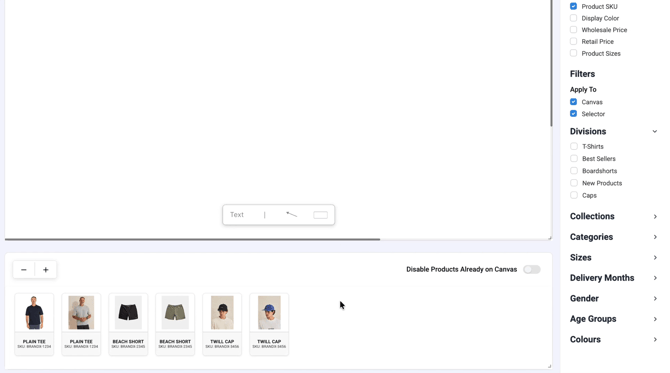
Simply drag and drop products from the tray at the bottom of your screen. These are pulled directly from your existing Buyplan, so no manual uploading is required.
-
Auto-Populate: Product imagery and technical details populate automatically once a product is placed on the canvas.
-
Visibility Control: Use the toggle in the bottom right to quickly show or hide specific products on your current view.
Tip: Make sure you've selected products for your Buy Plan to curate your canvas
2. Design & Annotate
Customisation is at the heart of the Whiteboard.
-
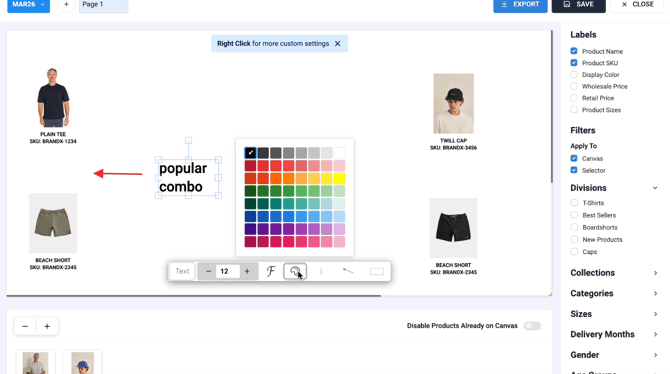
Shape & Direction: Add arrows, boxes, and text to guide the viewer's eye.
-
Flexibility: Boxes can be resized to fit your layout, and text colours can be changed to match brand colours or highlight key categories.
-
Quick Clean-up: Made a mistake? Just Right-Click to clear elements and start fresh.
3. Organise & Filter
Manage complex buys with ease using the side panels and navigation.
-
The Right-Hand Panel: Use the tickboxes to toggle labels, filters, divisions, and specific collections on or off.
-
Multi-Page Documents: Organise your canvas by month using the page organiser in the top left. Create multi-page months that tell the story of the range.
4. Sharing and Exporting
Once your vision is complete, getting it in front of the right people is a two-click process.
-
Click the Blue Export Button to take your Whiteboard directly to where it needs to be. You can even send via a PDF.
Best Practice Tips
-
Create one page per delivery month
-
Highlight hero products using arrows or boxes
-
Use text to communicate key selling points
-
Keep layouts clean to make buying decisions easier
Tip: Always remember to click save in the top right corner before closing your session to ensure all your layout adjustments are captured and remain on the Buy Plan