.png?width=250&height=34&name=BS-logo-pb%20(1).png)
Why this matters
- Encourage retailers to meet minimum spend requirements
- Reduce low-value orders and freight costs
- Control whether retailers can submit orders below minimums
Warning: This feature must be enabled by your Brandscope Account Manager
1. Apply Order Minimums
When enabled:
- Retailers will be notified if their order does not meet the minimum amount
- Retailers can still submit the order
- Retailers must acknowledge the supplier’s terms before submitting
Suppliers can also enter a custom Order Minimums Not Met Message to display to the retailer.
For example "Your order minimum is $1000. You will be charged for postage and will need to pay in full for your goods to be shipped".
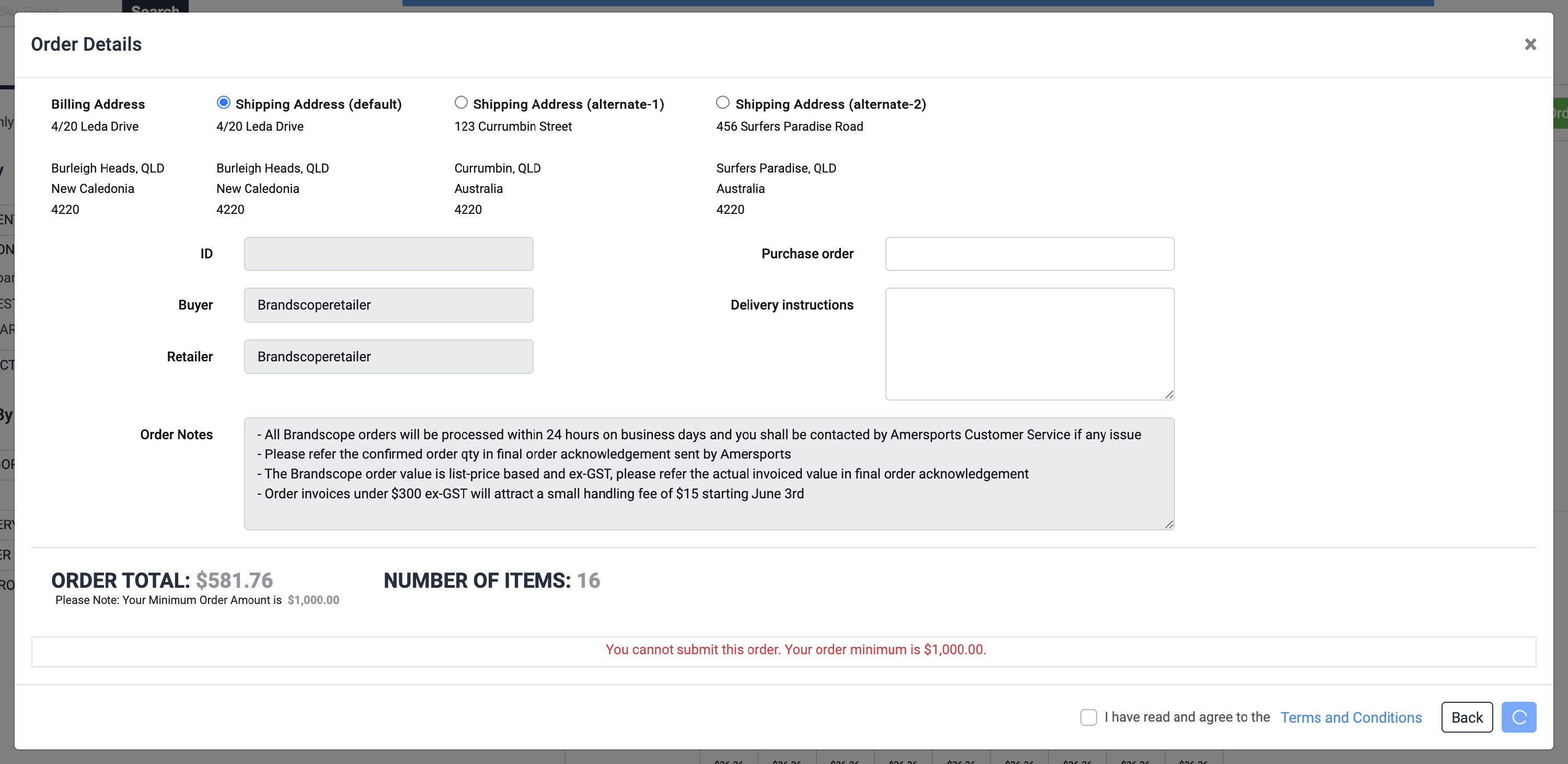
2. Enforce Order Minimums
This setting only applies if:
- Apply Order Minimums is enabled
When enabled:
- Retailers cannot submit the order until the minimum amount is reached
3. Order Minimums Not Met Message
This is a free text field allowing suppliers to customise the warning message shown to retailers when:
- Apply Order Minimums is enabled
- The order does not meet the required minimum
This setting does not apply when:
- Enforce Order Minimums is enabled
Because the retailer cannot proceed with the order until the minimum requirement is met.
Updating Minimum Order Amounts
Minimum order amounts are configured per retailer.
There are two ways to update these settings:
- Individually in Brandscope
- Bulk upload via import file
Option 1: Update Individually in Brandscope
Steps
- Go to:
- Setup → Brand/Retailer Settings → Brand/Retailer Settings
- Search for the retailer
- Update the relevant minimum order settings directly in the grid
- Press Enter to save changes

Option 2: Bulk Update via Import File
Best for: Updating multiple retailers at once
Steps
- Go to:
- Administration → Retailer Imports → Brand/Retailer Settings Import
- Download and complete the import file
- Include order minimums
- Send the completed file to your Brandscope Account Manager for upload
For further assistance, reach out to your Brandscope Account Manager.
Applying order minimums at the release level
You can now also control whether order minimums apply to a specific release. This allows you to override the default brand/retailer-level settings for individual releases where different rules may apply.
- Go to Setup > Releases
- Select the relevant release and click the Edit icon
- Locate the Apply Order Minimums setting
- Toggle on or off as required
- Save