.png?width=250&height=34&name=BS-logo-pb%20(1).png)
There are two ways you can do this; either updating individually in the GUI or bulk via DLS.
Option 1: Update via DLS (Recommended for bulk)
- Click SETUP >>> RELEASES.
- Use the search box at the top of the column to find the Release.
- Select the Release and then select the EXPORT icon.
- Select the Product Price DLS Export option.
- Open the downloaded DLS file and update the relevant pricing columns.
- Once updated, ensure the DLS is saved as a CSV file.
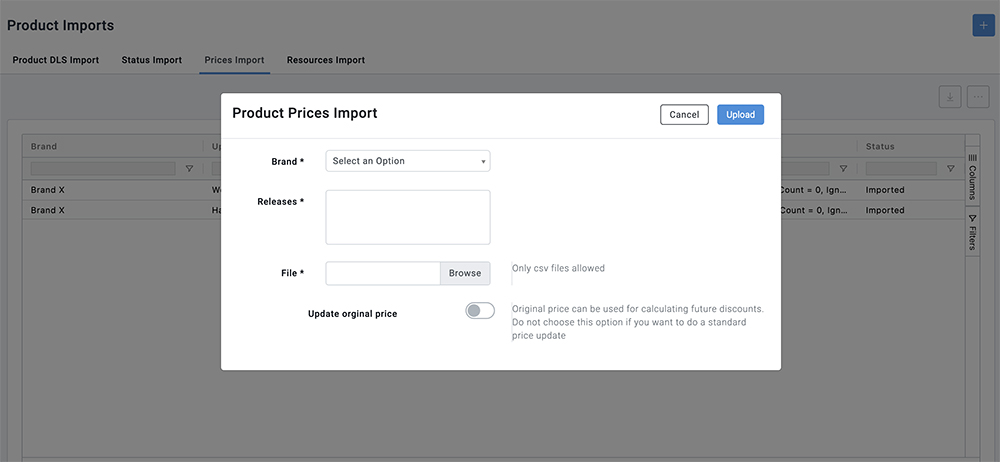
- To upload the DLS, select ADMINISTRATION and select PRODUCT PRICES IMPORT.
- Select the + icon.
- Select your Brand and Release from the drop-down lists and then click the BROWSE button to select the file.
- Click UPLOAD.
Option 2: Update in the Interface (GUI) - Price by Size
- Go to Setup → Releases
- Select your Release
- Click More (⋯) → Release Products
- Find your Product
- Click More (⋯) → Product Releases
- Select the product → click Edit
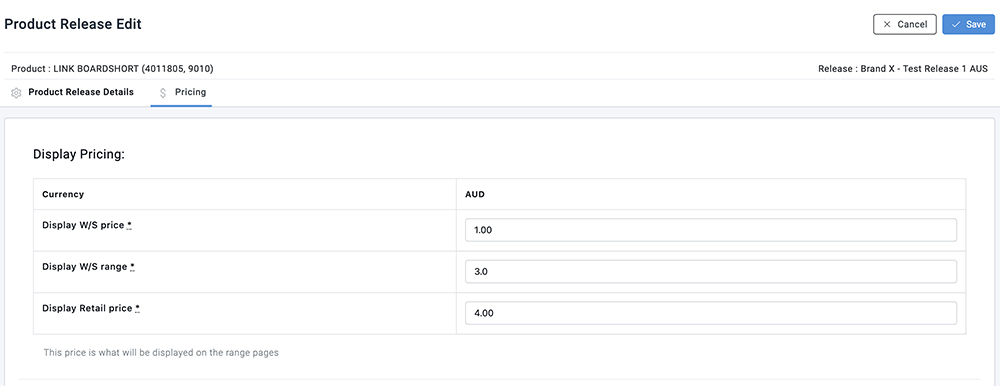
- Go to the Pricing and Order Minimums tab
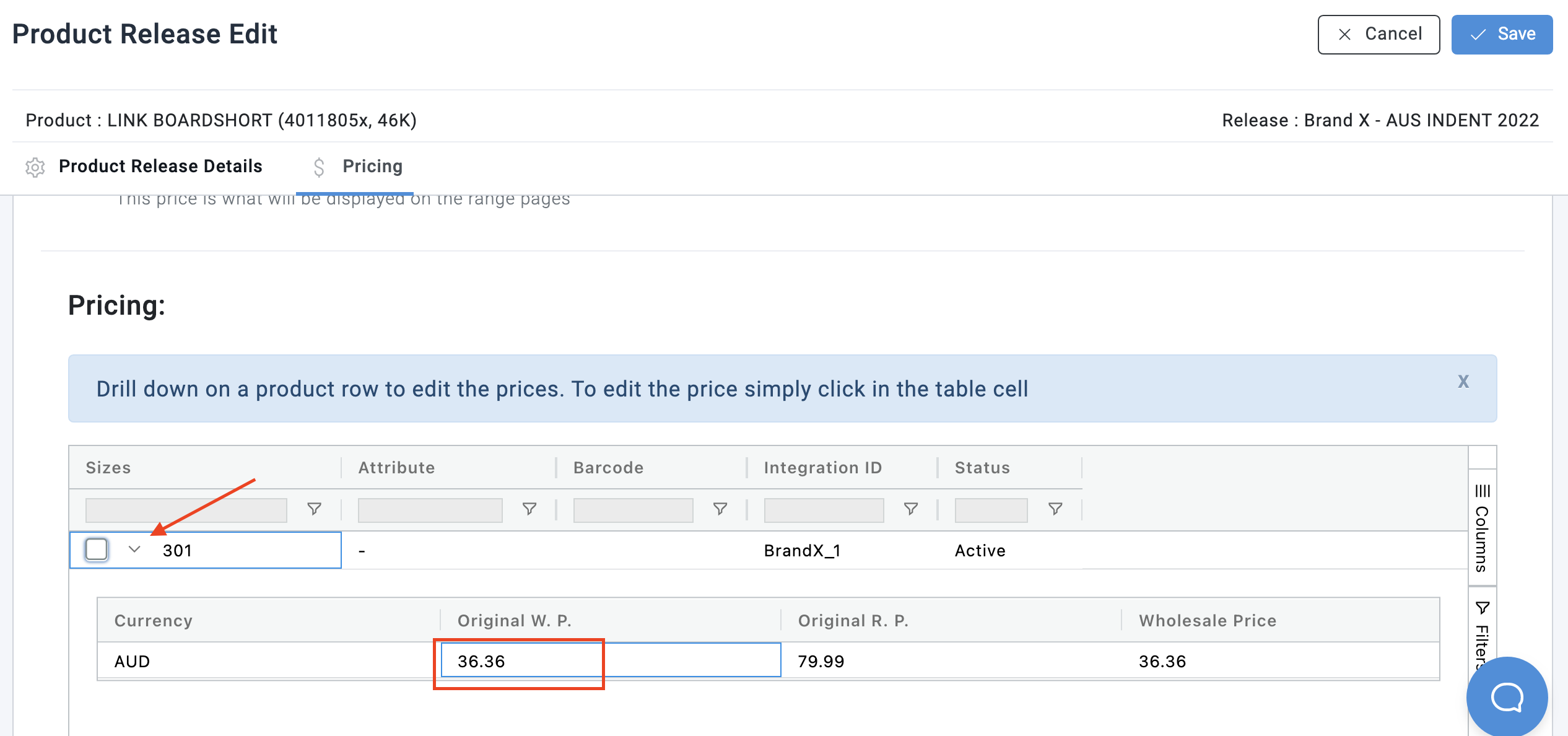
- Click the price you wish to edit in the pricing columns, change the price.
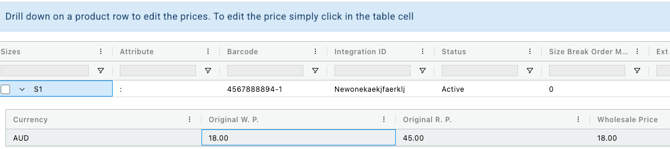
- Scroll down and update the size-level pricing
- Start typing in the cell to override the price
- Once the new prices have been entered click the SAVE button.