.png?width=250&height=34&name=BS-logo-pb%20(1).png)
Why it matters
Managing product data across your ERP and Brandscope manually is time-consuming and error-prone. Product Integration creates a direct, validated pipeline between your external system — whether that's CIN7, Brightpearl, Netsuite, AP21, or a Data Load Sheet and Brandscope's live product catalogue. Data lands in a staging area first, where it's validated before going live, so nothing reaches your retailers until it's confirmed accurate.
For suppliers managing large or frequently updated catalogues, this feature significantly reduces upload time, eliminates double-handling, and gives you full visibility over data quality before it goes live.
⚠️ This is a paid feature
Product Integration must be enabled by your Brandscope Account Manager and requires an onboarding session before use. Contact your Account Manager to get set up.
Getting Setup
Your Brandscope Account Manager will configure the integration on your behalf.
- Navigate to Setup > Supplier
- Select the supplier and click Edit
- Go to Settings > Enable Product Integration
- Configure the source:
- CIN7 - requires endpoint, username, and password
- Brightpearl - includes additional options for brand selection, weights, dimensions, currencies, and custom fields
- Netsuite
- AP21
Once enabled, the Draft Products tab will appear under Setup > Products.
How it Works
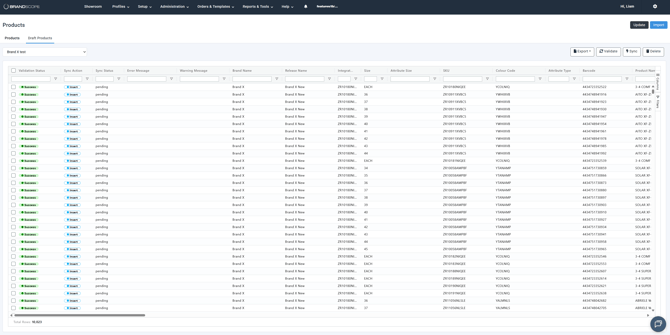
All product data, whether pulled from your ERP or uploaded via DLS, lands in the Draft Products staging area first. From here you validate it, fix any errors, and then sync confirmed data to your live Brandscope catalogue. Nothing goes live until you approve it.
The core workflow is:
Import or pull data → Review and fix errors → Validate → Sync to live
Step 1 — Import product data
Click the Import button at the top right of the Draft Products page to bring data in from your connected ERP or upload a CSV/Excel DLS.
- Imported data is automatically validated on arrival
- Each row is assigned a Validation Status — either Success or Failure
- Any rows with errors will display a message in the Error Message column explaining what needs to be corrected
💡 Tip: If you have a scheduled API pull configured, new data will arrive in the Draft Products page automatically. Navigate to the page to review it and run it through the standard process.
Step 2 — Review and update data
Once data is in the staging area, you can correct or update it in two ways:
Edit in place
Double-click any cell in the grid to update information directly without leaving the page.
💡 Tip: This edit-in-place functionality works across Brandscope, it's worth knowing about elsewhere in the platform too.
Update via file upload
Click the Update button to upload a CSV or Excel file with corrected or additional product data. During the update process you can:
-
Map your file's column headers directly to Brandscope DLS fields, use any Excel layout and Brandscope handles the alignment
-
Save your mapping for future uploads, so you don't have to remap each time
-
Export the current Draft Products grid and paste corrected values directly back in to reduce errors
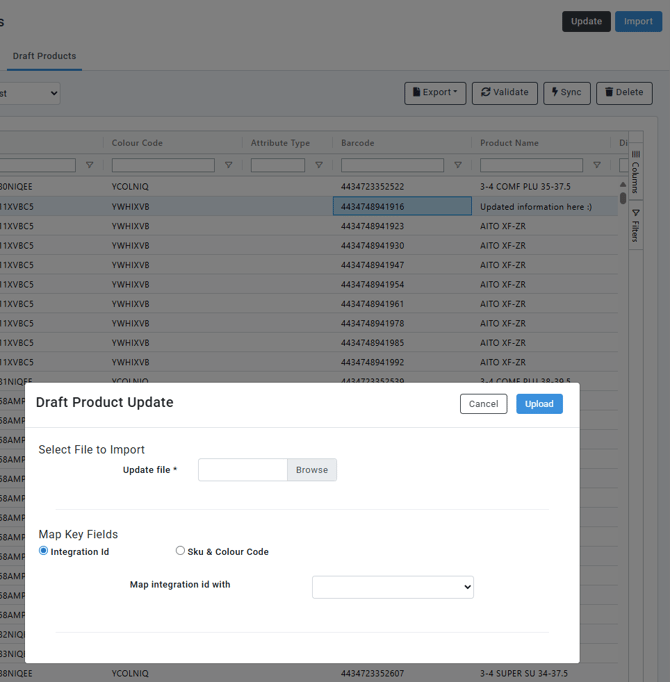
⚠️ Important: The Update function is particularly useful when ERP data is incomplete or inaccurate. Rather than fixing it at the source, you can export the staging data, correct it in Excel, and re-upload in a single step.
Step 3 — Validate
Select one or more rows and click Validate to run a data check before syncing.
- Rows that pass will show a Success status
- Rows that fail will show a Failure status with details in the Error Message column
- Resolve any errors, either by editing in place or uploading a corrected file, then validate again
- Successfully synced products are removed from the Draft Products tab. Records are retained in the background for 48 hours before being permanently deleted, so if you need to reference a recently synced product there is a short window to do so.
When validation errors are found, the affected fields are highlighted in light red directly in the grid, so you can see at a glance exactly which cells need attention before re-uploading or editing in place.
📝 Note: Any time you edit a field in the grid, that row's Validation Status will reset to Requires Validation. You'll need to run Validate again before you can sync that row. Only rows with a Success validation status can be synced to live. Products with unresolved errors cannot proceed until the issues are fixed.
Step 4 — Sync to live
Select validated rows and click Sync to push them to your live Brandscope product catalogue.
- Successfully synced products go live immediately and are removed from the Draft Products staging table
- Products with validation errors remain in staging until resolved
- If you select a mix of validated and failed rows and click Sync, the system will only sync the rows with a Success status. Failed rows will remain in staging for you to fix.
Other actions
Export — Download selected rows as CSV or Excel for external review or to use as the basis for an update upload.
Delete — Remove unwanted or incorrect rows from the staging table. Use this to clean up test data or imports that are no longer needed.

Event Logs
Tracking your imports and syncs
Brandscope generates event logs for both import and sync actions. These record the source (e.g. CIN7, Brightpearl or DLS), the outcome, and any errors or warnings. Logs can be downloaded for your records or for troubleshooting with your Account Manager.
Understanding the Draft Products grid
The grid aligns with Brandscope's DLS structure. Key columns include:
- Validation Status — shows whether the row has passed or failed validation
- Sync Action — quick-action button to sync that row
- Sync Status — confirms whether the row has been synced to live
- Error Message / Warning Message — details on any validation failures or recommendations
- Brand Name, Release Name, Integration ID, SKU, Barcode, Product Name
- Pricing fields (Retail, Wholesale, Original, Display)
- Sizes, Attributes, Gender
- Pack information (Units, Barcodes, Multiples, Min/Max Order)
- Dimensions and Weights
- Product Details (Specifications, Requirements, Descriptions)
- Marketing fields (Tags, Sales Tips, Marketing Support)
- Available Months and Segment Names
- Created At / Updated At timestamps
💡 Tip: Most actions like Validate, Export, Delete, and Syn, can be performed on multiple rows at once. Select all the rows you want to action before clicking, rather than processing them one at a time.
👉 For a full explanation of each column and its required format, refer to theFor a full explanation of each column, see DLS support.
For setup, onboarding, or questions about your integration configuration, contact your Brandscope Account Manager.