.png?width=250&height=34&name=BS-logo-pb%20(1).png)
Step 1: Access Stripe Payments
-
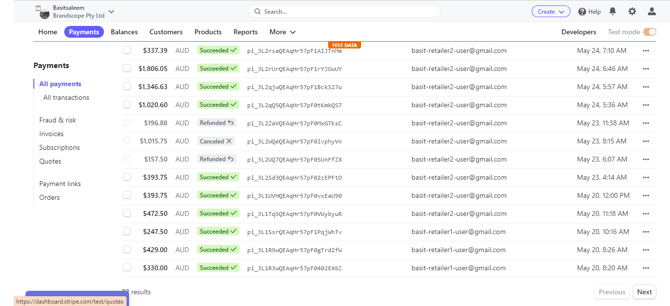
Log in to your Stripe Dashboard.
-
Navigate to the Payments tab in the main menu.
-
A list of all processed Stripe Payments will be displayed.
Step 2: Locate the Transaction
-
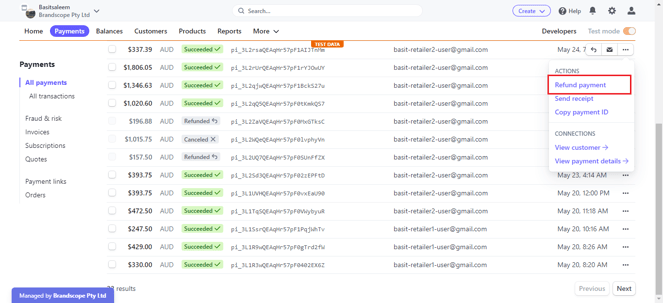
Find the specific payment you wish to refund from the list.
-
Click on the Three dots (...) dropdown menu located on the far right of the payment row.
-
Select the Refund payment option.
Step 3: Configure the Refund
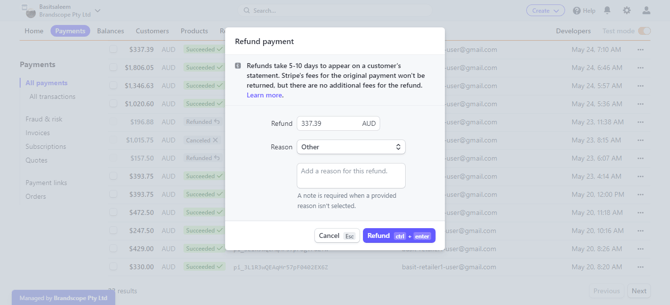
A Refund Payment pop-up window will appear. To finalize the request:
-
Define the Reason: Select the most appropriate reason for the refund from the dropdown (e.g., Duplicate, Requested by Customer, or Other).
-
Execute: Click the Refund button.
Step 4: Platform Synchronisation
Once the payment is marked as refunded in Stripe, the update will flow through to the platform:
-
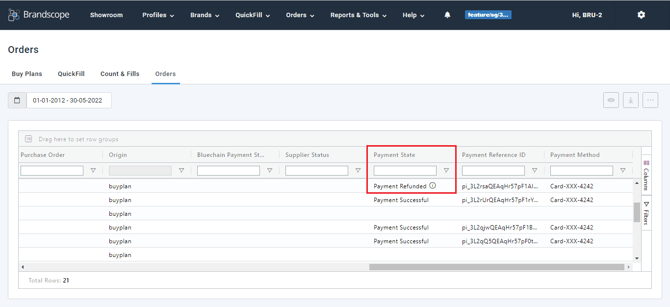
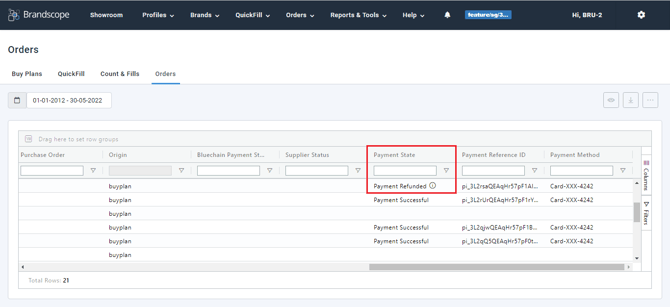
Brandscope Visibility: Navigate to the Orders page.
-
Status Update: The refund will be reflected under the Payment State column for that specific order.
Note: Depending on the retailer's bank, it may take 5–10 business days for the funds to appear back in their account after the "Payment State" updates in Brandscope.