.png?width=250&height=34&name=BS-logo-pb%20(1).png)
🗒️ Note: The criteria are:
- Brandscope will search existing retailers first, using the Retailer Name, Email and Business Number you provide
- If a match is found, you'll be shown a shortlist to link to instead of creating a duplicate; follow the link to the existing retailer link to brand guide
- If no match is found, you can submit a brand new retailer for Brandscope admin approval
Steps
- Go to Profiles > Partners > Retailers > click "New Retailer Setup" in the top right-hand corner, next to Link Existing Retailer
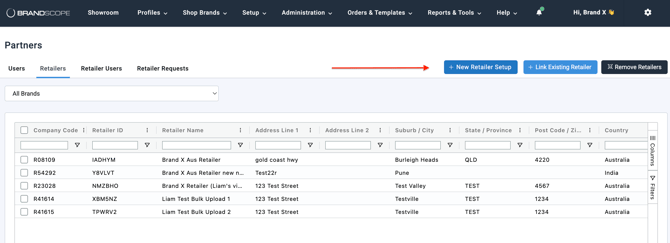
- You'll be redirected to the Link Retailer page. Enter the following and click Search:
Retailer Name
Email Address
Business Number - If Brandscope finds a match: a Retailer List pop-up appears, listing possible matches along with their Suburb/City and Postcode
- Select the retailer you would like to link and click Link to Brand
- The Link Existing Retailer modal opens with the Retailer's ID and Name pre-filled. Select the Brand(s) you'd like to connect, then complete the relevant Territory, Price Book, Account and Payment details before clicking Save
- If the retailer you're after isn't in the list: click Retailer Not Found from the Retailer List pop-up. This opens the full new retailer form - continue below.
If no match is found at all: the Link Retailer page will show Retailer Not Found!!! in red, and the full new retailer form will open automatically. - Fill out the New Retailer Form with Address Details, User Details. Anything marked with * is mandatory.
- Select the Brand Name and click Add Brand - the Retailer, Account, Payment and Release Details fields will appear underneath for that brand. To link the retailer to more than one brand, click Add Brand again - a fresh set of fields will appear each time.
- Once everything is filled in, click Submit for Approval. A summary pop-up shows the retailer name and every brand added - review this, then click Confirm.
💡 Tip: You can click Save at any point to keep your progress without submitting - the request will sit as In Progress until you're ready to submit it.
What Happens Next?
Submitting for approval sends a notification to the Brandscope admin team. You don't need to do anything further, and you'll receive a confirmation email once the retailer is approved and linked to your brand(s).
-
In Progress - you've clicked Save but haven't submitted yet
-
Requires Approval - you've clicked Submit for Approval and it's waiting on the Brandscope team
-
Supplier Linked - Brandscope has approved the request and the retailer is now linked to your brand
If Brandscope finds an existing retailer that matches your submission during review, they may link you to that existing record instead of creating a duplicate - you'll still receive a confirmation email either way.