.png?width=250&height=34&name=BS-logo-pb%20(1).png)
Why this matters
- Ensures retailers can see and order your products
- Assigns the correct sales rep or region
- Keeps your territory structure organised
Steps
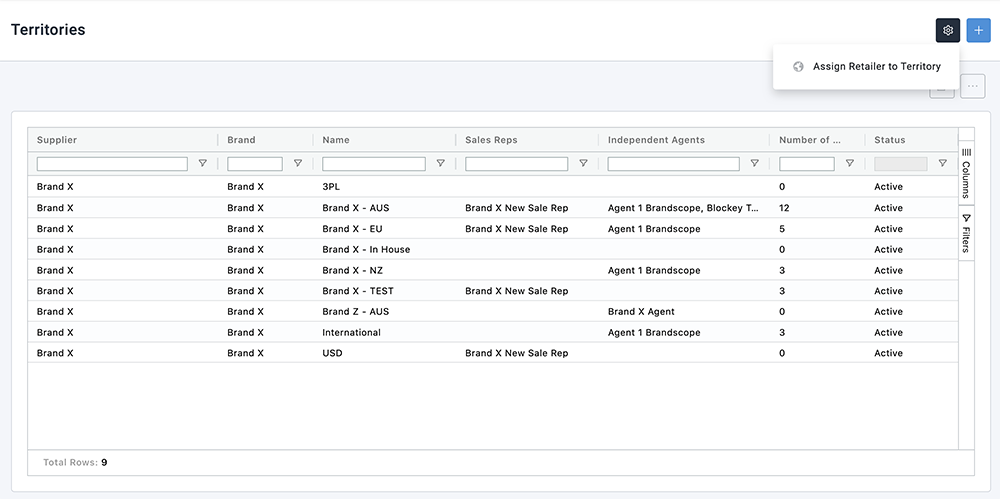
- Go to Setup → Territories
- Click the ⚙️ (cog icon) next to the territory
- Select Assign Retailer to Territory
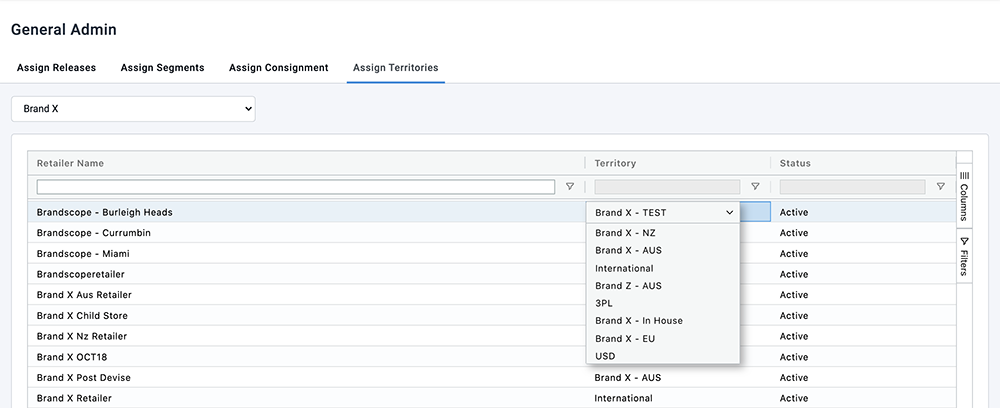
- Select your Brand
- Search for the Retailer(s) you want to update
- In the Territory column:
- Double-click the field
- Select the new territory
- Save your changes (if prompted)
Bulk Updates
If you need to update multiple retailers at once, we recommend submitting a bulk request. Bulk updates are recommended when updating more than 10 retailers
Please contact your Brandscope Account Manager and complete the attached Bulk Territory Update Form.